From your phone#
anaico --lan (or npm start -- --lan) also lets other devices on your network in, so you can carry on a session
from your phone while the computer does the work. In the desktop app, type /phone and answer Turn on. It is off
at every start: you ask for it each time, like a looser permission mode.
Connect#
- Start with
--lan, or type/phoneand answer Turn on (your system may ask once to allow incoming connections). It shows a few links ending in/pair?e=<code>, one per way the phone can reach the computer: the Wi-Fi address first, then other addresses such as Tailscale, then its.localname, with a QR code for the first one. The code works once and for two minutes; type/phoneagain for a new one. - Open the link on the phone, on the same Wi-Fi or on your private network. The phone shows four digits.
- On the computer, a card says "A phone wants to connect" with the same four digits. Check that they match and press Allow (or Deny). The phone then opens her and stays signed in; the link and its code are of no use to anyone else.
/phone deviceslists the phones you allowed,/phone revoke 1(orall) removes one,/phone newmakes a new link, and/phone offturns phone access off again (the allowed phones stay on the list and can come in when it is turned on). An allowed phone is good for 90 days from its last use, so one you use now and then never has to be allowed again; one you stop using expires by itself.
The computer's page has to be open to answer the card (the desktop app, or the page in a browser on the computer). With nothing open there, the phone waits, and the card appears when a page opens, until the two minutes are over.
The old shared link of earlier versions (?t=<token>) still works for one more release when you start with
--lan, with the same limits as before; it is listed on the card and counted by /phone devices, and it goes away
in the release after this one.
What a phone can do#
Chat, answer the approval cards, stop her, switch between chat and work, type a project folder (/work ~/project or
the folder field), and change her look.
What it can ask for. Accept edits, Auto (Claude Code), Run everything (Cursor, opencode) and saving notes about you
without asking are looser than "ask before everything", so a phone cannot just turn them on. It asks: a card appears on
the computer, "Chrome on Android asks to turn on Accept edits: Allow, Always for this phone or Deny". Allow does it once, right then, as if you had typed
it there, and the next time asks again. For Accept edits and Auto the card also has Always for this phone: that phone then
switches them on without a card (it is remembered with the phone in data/phone-devices.json, /phone devices shows it, and
/phone revoke takes it away with the phone). Run everything and saving notes without asking always ask. Deny, two minutes without an answer, or the phone going away end the question. The
phone's menu stays where it was until you say yes. With nothing open on the computer to answer, the phone is told to
open the app there and ask again. The same goes for the choice on an approval card that says "from now on".
What it cannot do, because these run without a card or reach into the computer: !commands, /restart,
/setup on, /skills on, /chrome on, importing or resetting a character card, opening her notes file, installing a brain,
and the system's folder dialog (that opens on the computer). The home folder and / still cannot be a
project folder. Typing while she answers (the queue) works from a phone; the microphone button does not, because
browsers only allow a microphone on localhost or HTTPS.
Talking to her from a phone#
Use the microphone key on your phone's keyboard to dictate into the message box. A built-in mic button is not included (see Voice for why), but her voice works on the phone: turn Voice on and pick one of the phone's own voices.
The layout on a phone#
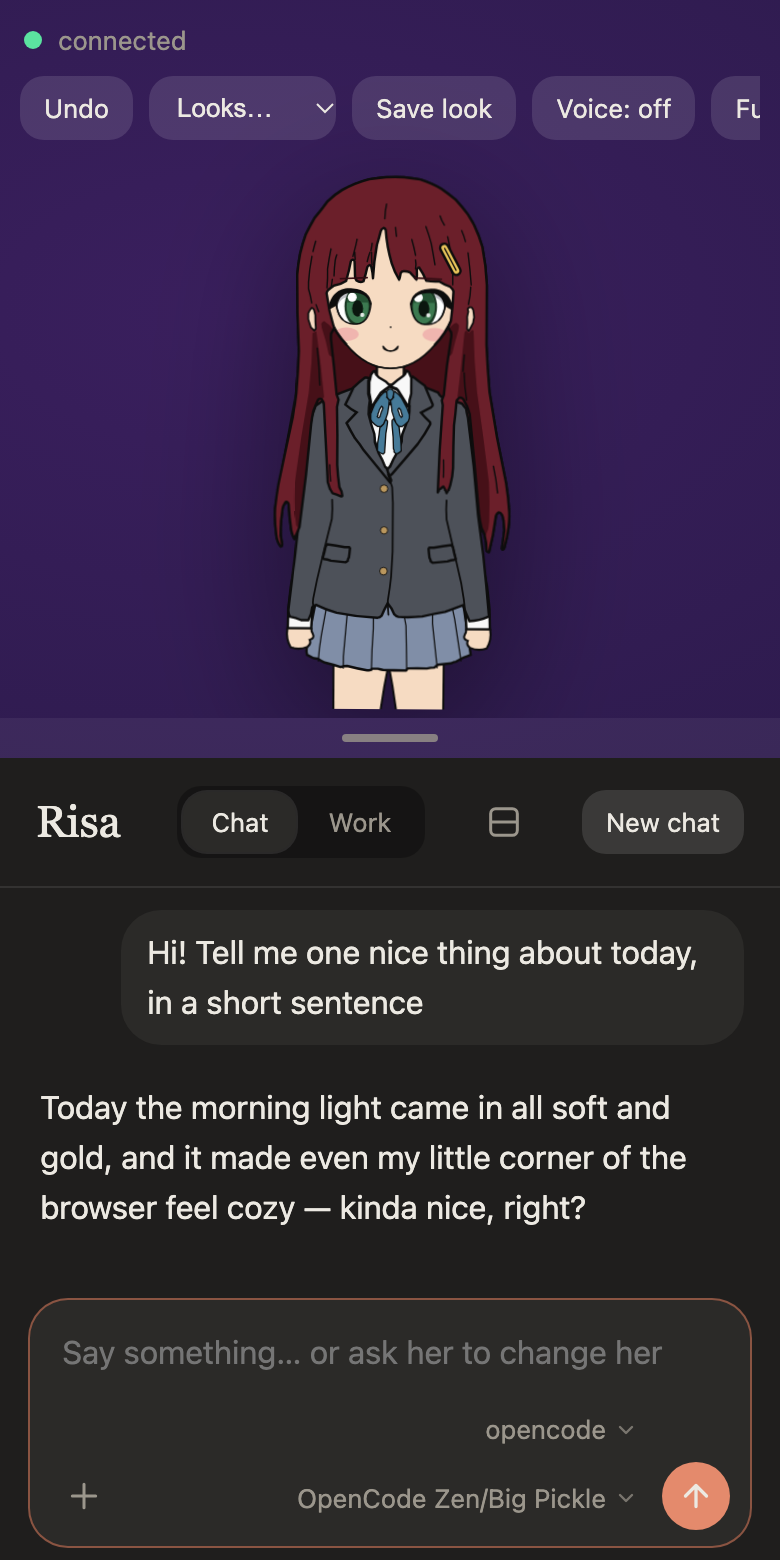
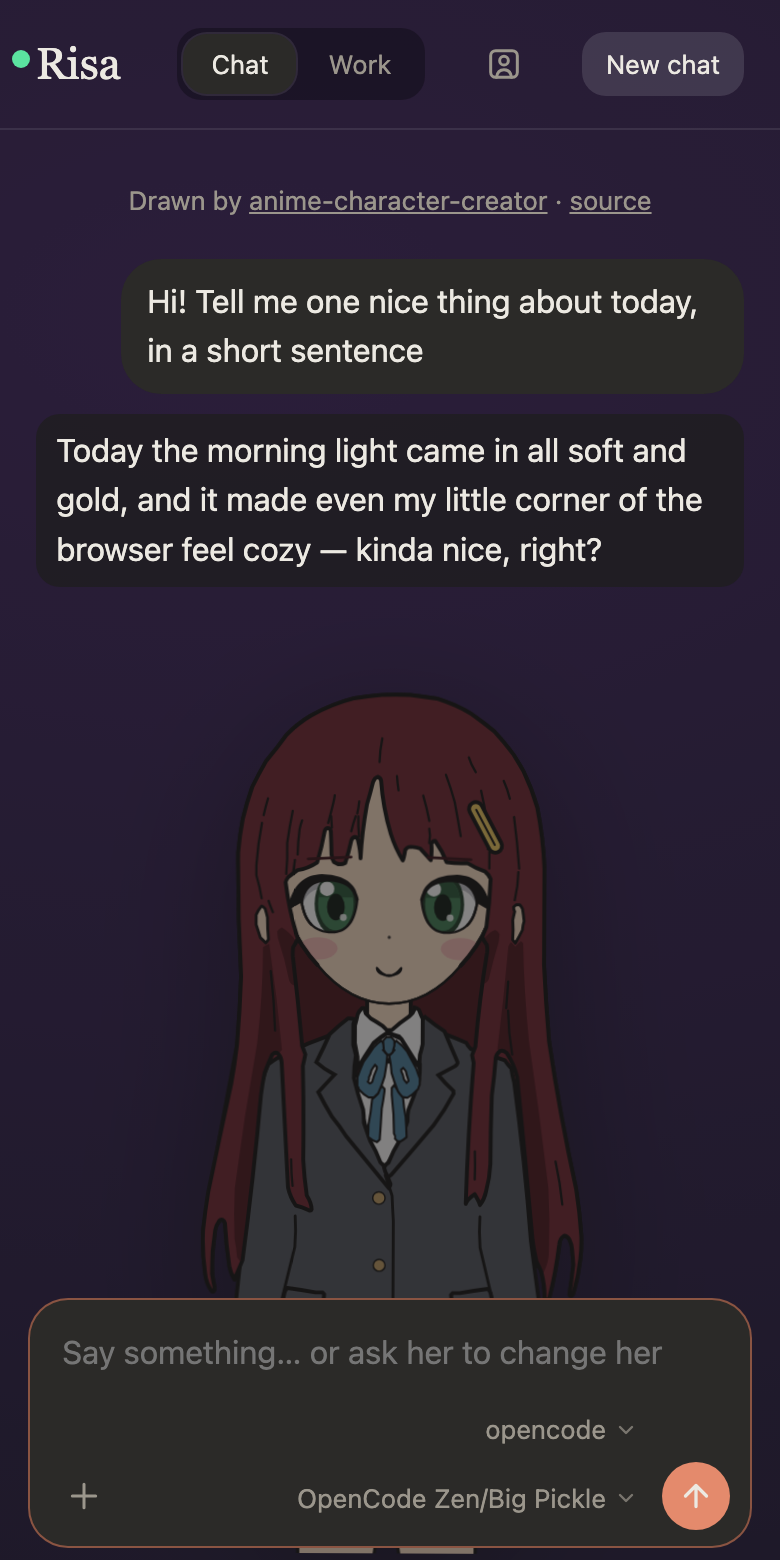
On a narrow screen she is above the chat, with a bar between them to drag up or down (double-tap resets it). The button in the chat's header puts her behind the chat instead: the chat takes the whole screen and she shows faintly through it. Dragging the bar on past the smallest she gets does the same. The menus (brain, model, permissions) open as a sheet from the bottom that scrolls when the list is long.
Away from home#
Pairing keeps a leaked link or QR code useless after one use, but the connection is still plain http: someone on the
same network could read what you send, and take over a signed-in phone. Use it only on a network you trust (not café
Wi-Fi). The phones you allowed are saved in data/phone-devices.json, readable only by you, and only as a hash.
For use away from home, put the computer and the phone on a private network you own and use the computer's address there. Two ways that keep the pairing and its limits:
- Tailscale (or another WireGuard-based network such as plain WireGuard): install it on both, start with
--lan, and open the link/phonelists for the computer's Tailscale address. The phone is a network phone like any other: the card, the four digits and the limits above all apply, and the traffic between the two is encrypted by the network. - Your router's own VPN does the same: the phone appears on your home network from outside.
A tunnel to the computer's loopback is different, and gives more than you may expect. ssh -L 3737:127.0.0.1:3737 computer (from Termux or ConnectBot on the phone), Tailscale's serve, a Cloudflare tunnel or any reverse proxy on the
computer reaches the app as the computer itself. The app cannot tell, so that connection gets every right of the page
on the computer: !commands, Auto and Run everything without a card, /restart, and the rest. It needs no pairing, no
yes and no code. Use it only for a tunnel you own and control end to end, never a public address, and know that anyone
who gets through it has your computer. Turning phone access off (/phone off) does not close it.
If the page does not load#
ERR_ADDRESS_UNREACHABLEmeans the network is in the way, not the app. Turn off a VPN on the phone.- Look for "client isolation" or "AP isolation" in the router's Wi-Fi settings. It lets Wi-Fi devices reach the router but not each other.
- macOS asks once whether
nodemay accept incoming connections: allow it. - On the phone's plain-
httppage the browser withholds the clipboard, so the copy buttons do nothing there.
Made with AI coding agents, mostly Claude Code. This documentation was written by Claude Code. Details